Quote Setup & Configuration
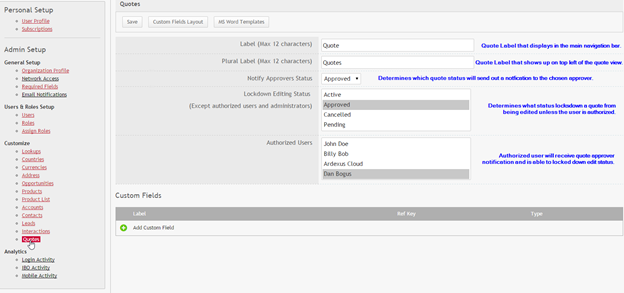
In order to setup and configure the quotation functionality in ASPEC navigate to setup. Click on Quotes under customization.
Creating a Quote
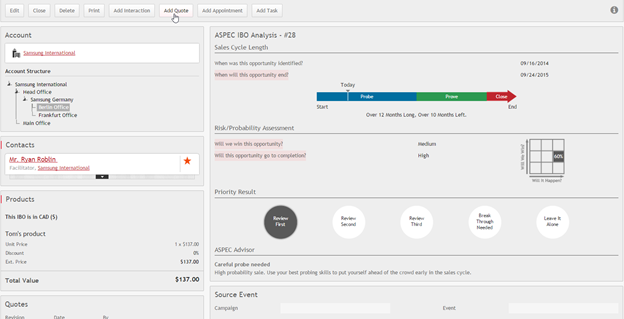
Creating a new quote can be done from any open IBO.
Quote Workflow
The quote view page contains varies information that is inherited from an IBO.
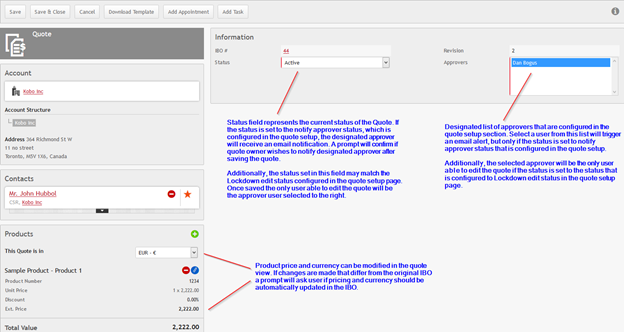
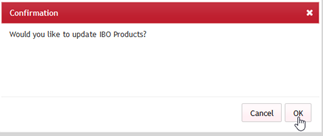
Prompt after making changes to currency or pricing within the quote view.
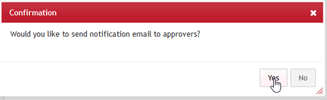
Prompt after selecting approver status & approver user from the list within the quote view.
Quote Scenario
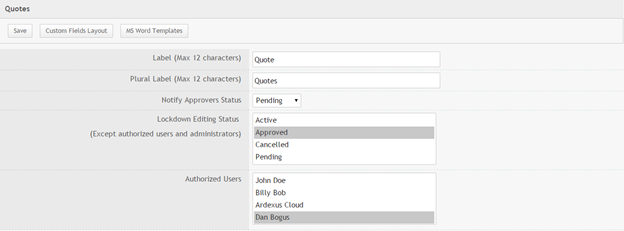
In the quote setup section is configured to the following values below. The labels remain the same while the notify approver status has been set to pending. This means when sales representative places a quote into pending status, the designated authorized user/approver will receive a notification. The lockdown edit status is set to approved, when the approver sets the pending status to approved, only the authorized users will be able to edit that quote.
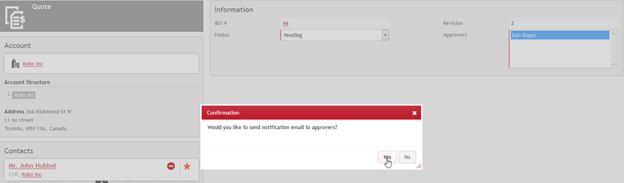
Sales rep changes status to pending and initiates a notification to the approver.
The approver receives an email notification of the pending quote. Approver can access the quote directly and set it to approved status.
When the status has been set to Approved the sales rep will no longer have the ability to edit the quote. Only authorized users will have the capability to modify an approved quote as per quote setup page.

Microsoft Word Quote Add-in
ASPEC allows quotes to be created in Microsoft Word and pull all necessary Information from Quotes. MS Word Add-In populates bookmarks in MS Word the field values from the Quote.
MS Word templates are stored in the Setup section.
To pull the information from Quotes, users must install the Add-In and configure the connection (once ).
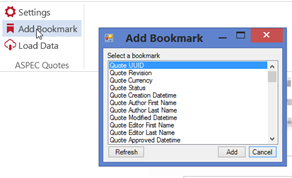
Bookmarks represent the fields which will be synchronized from ASPEC down to the Word Document. The bookmarks can be placed anywhere in the document by clicking Add Bookmarks in the ASPEC Quotes Add-in.
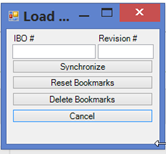
Once the connection is set up, the Add-In is used to pull the Quote information from ASPEC, using IBO# and Revision as the unique search key. Clicking Synchronize populates the Bookmarks with the field values.